A practical step-by-step guide to importing AI chats, web pages, threads, and highlights into NotebookLM.
Start From A Supported Source Page
Open a supported source page first, then click the extension popup and switch to Import mode. The extension detects whether the current page can be turned into a NotebookLM import flow.
Current public import messaging should focus on ChatGPT, Claude, Gemini, Perplexity, Reddit, X, LinkedIn, and standard article-style web pages.
- Open ChatGPT, Claude, Gemini, or Perplexity when you want to save a useful AI thread
- Open Reddit, X, LinkedIn, or a normal article page when you want to collect outside research
- Use Import mode in the popup to confirm the current source is supported
- Choose current content or selected text when the page workflow allows it
Choose Or Create The Destination Notebook
Before importing, select the destination NotebookLM notebook from the popup. The notebook picker is designed for people who already organize research by topic, project, or client.
If the right notebook does not exist yet, create a new notebook during the import flow instead of leaving the page to set it up manually.
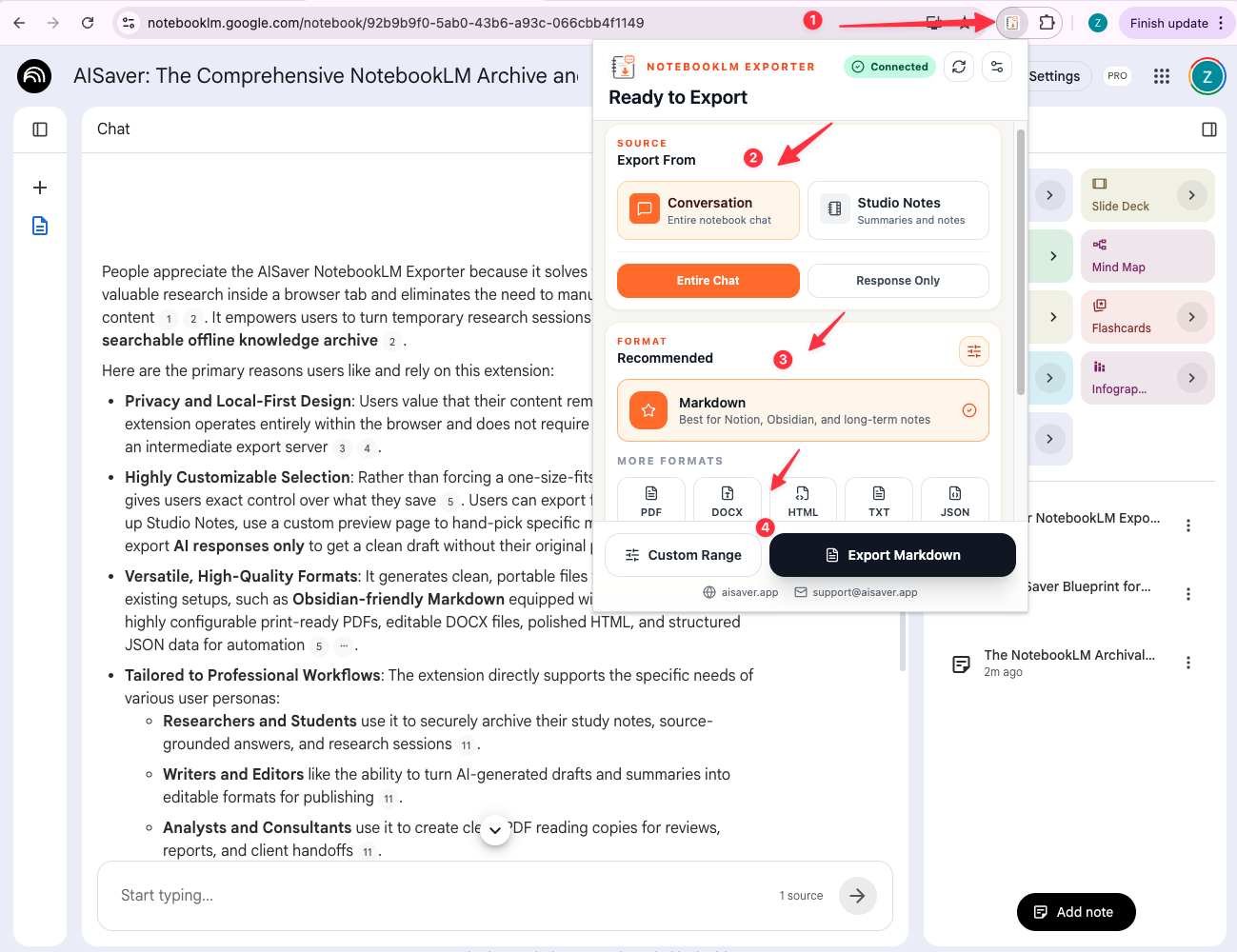
- Search the available notebook list before importing
- Choose an existing notebook when the destination is already known
- Create a new notebook without leaving the flow
- Keep the workflow focused on one destination at a time
Use Selection Import And History
Selection import is useful when only part of a page or thread belongs in NotebookLM. Instead of importing everything, send a smaller excerpt, quote, or highlight.
The extension also keeps local import history so you can review where content came from, which notebook it went to, and whether the import completed successfully.
- Import only selected text when a full page would be noisy
- Use highlight capture for article excerpts and quote-level research
- Review source, destination, status, and timestamps in import history
- Clear old local records when you want a cleaner history view