A practical step-by-step guide to single export, custom preview, and bulk NotebookLM export.
Single Export From The Popup
Open a NotebookLM notebook on notebooklm.google.com or notebooklm.google, then click the extension popup. The popup detects the supported page and lets you choose whether to export the conversation or Studio Notes.
Choose the scope and output format before starting. Conversation exports can include the entire chat or only AI responses when you want a cleaner summary-style file.
- Open a supported NotebookLM notebook page
- Choose Conversation or Studio Notes
- Pick all content, AI responses only, or custom preview where available
- Export as Markdown, PDF, HTML, DOCX, JSON, or text
Custom Preview Selection
Use Custom Preview when you do not want to export everything. The preview page lets you review extracted messages or notes, select only the items you need, and then download the filtered result.
This is useful for turning a long NotebookLM conversation into a smaller research summary, draft, citation note, or handoff document.
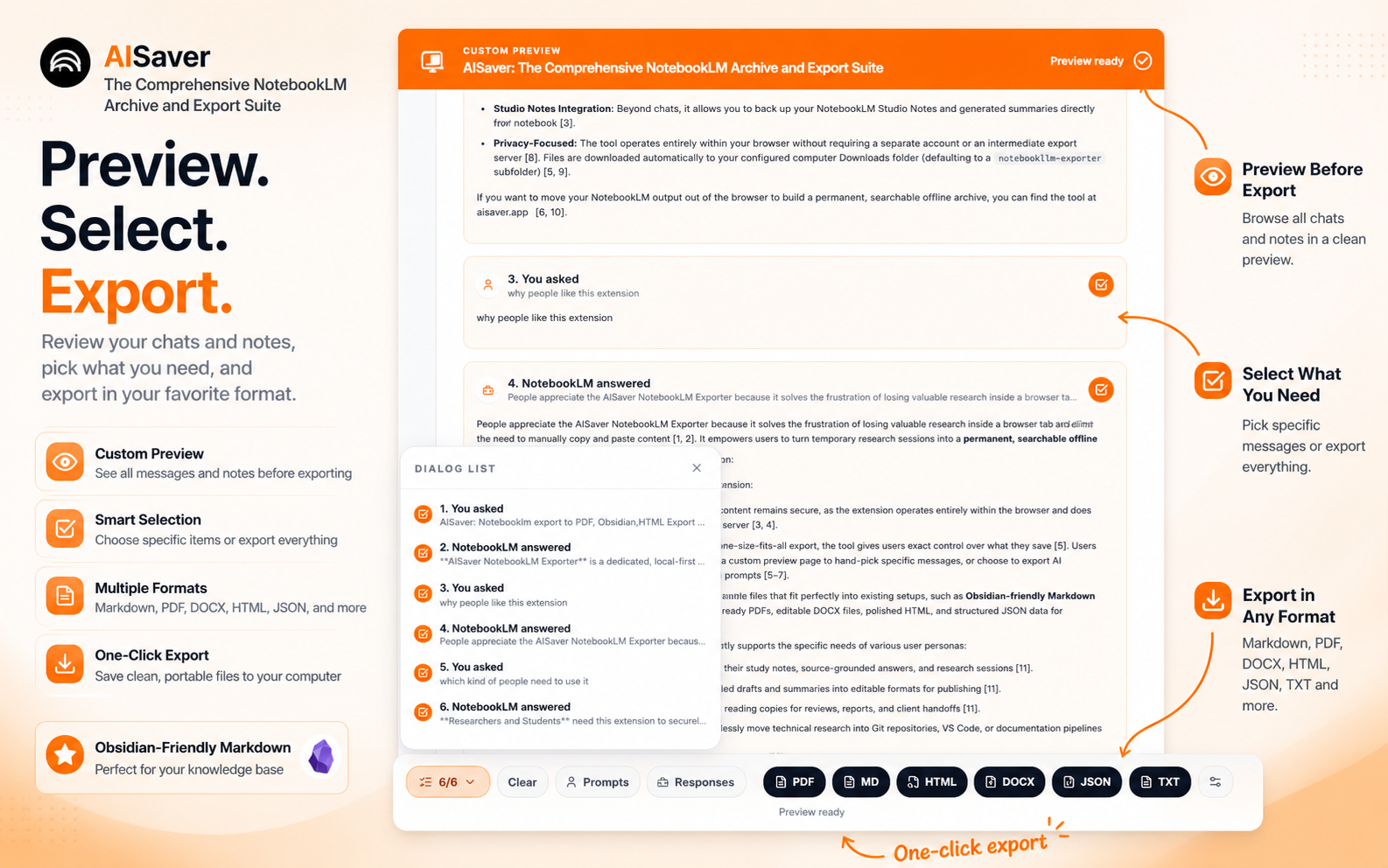
- Select or deselect individual messages and notes
- Jump through the extracted content before export
- Download only the selected content
- Use the same supported output formats as normal export
Bulk Notebook Queue
Open the Options page for the bulk workspace. Load your NotebookLM notebooks, search the list, select the notebooks you want, and choose whether to export conversations, Studio Notes, or both.
Bulk export runs notebooks sequentially. A failed notebook is recorded without stopping the whole queue, and failed items can be retried after the run.
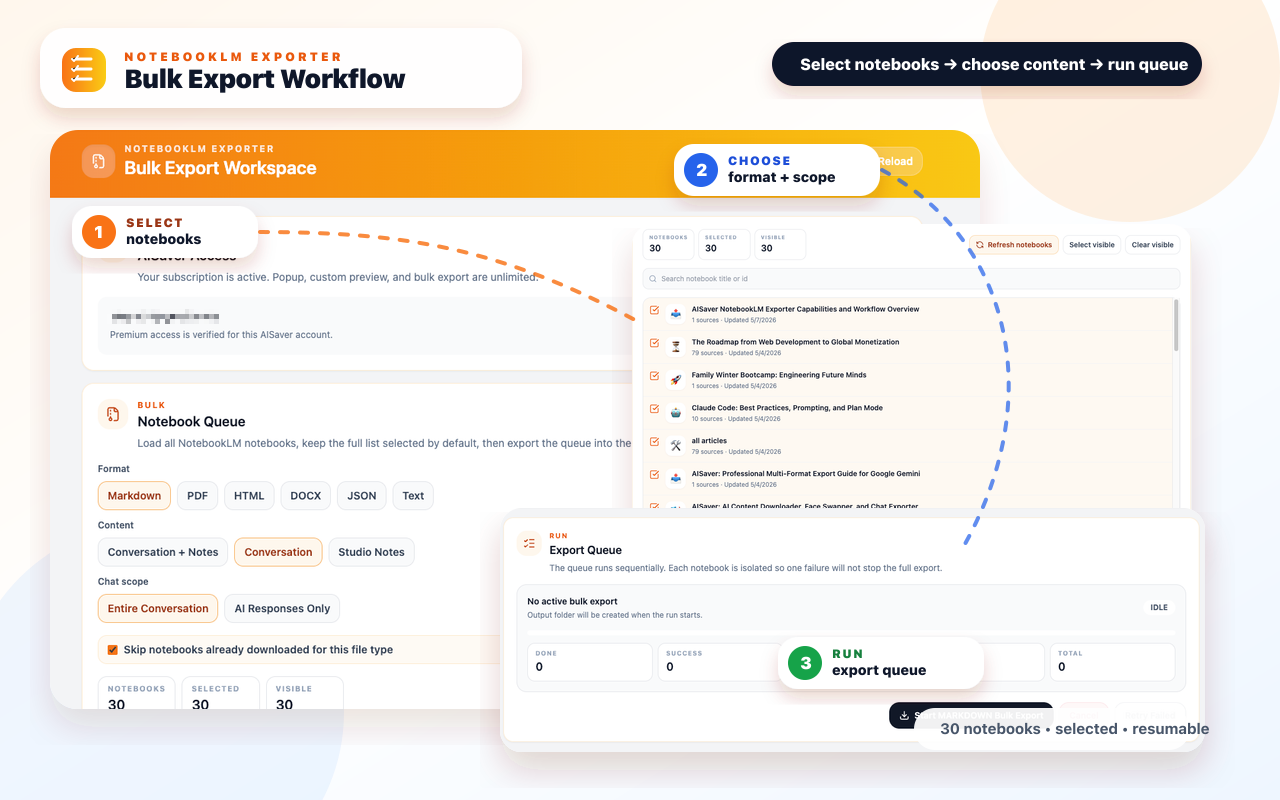
- Search notebooks and keep selected items across filters
- Choose Conversation, Studio Notes, or both
- Skip notebooks already downloaded for the same output type
- Cancel an active run and retry failed notebooks